QuickBooks automation and human bookkeeping review for accurate small-business financial records

QuickBooks Automation Saves Time, but Your Books Still Need Human Review

QuickBooks automation can save small-business owners hours of manual work. Bank transactions can download automatically, categories can be suggested, recurring activity can follow established rules, and reports can update as new information enters the system.

That is real progress. It is not the same as having finished, accurate books.

Automation handles repetition well. A professional bookkeeper adds the business knowledge, review, and judgment needed to determine whether the information in QuickBooks actually reflects what happened.

What QuickBooks Automation Can Do

QuickBooks Online can connect with bank and credit card accounts, download transactions, recognize common vendors, and suggest categories based on similar activity from the past. Business owners can also create bank rules that automatically categorize certain transactions.

These tools are especially helpful for predictable expenses such as rent, utilities, subscriptions, and other recurring purchases.

According to Intuit’s guidance on categorizing bank transactions, downloaded transactions are presented for review with suggested categories. The user can accept the suggestion, change the category, match it to an existing transaction, or split it between multiple categories.

That review step matters.

QuickBooks can recognize patterns, but it does not always know the complete story behind a purchase, deposit, transfer, or payment.

A Bank Feed Is Not Finished Bookkeeping

Connecting a bank account to QuickBooks does not automatically produce accurate books.

The bank feed shows that money moved. It may not explain why it moved or how the transaction should be recorded.

For example, a deposit could represent:

  • Customer income
  • A loan
  • An owner contribution
  • A refund
  • A transfer between accounts

Those transactions may look similar in a bank feed, but they have very different meanings in your financial reports.

The same problem can happen with money leaving the account. A payment might be an ordinary business expense, a loan payment containing principal and interest, an equipment purchase, a personal expense, or a transfer to another business account.

If the wrong category is accepted, QuickBooks will still include the transaction in your reports. The report may look polished while telling the wrong story.

Bank Rules Need Thoughtful Setup

Bank rules can make QuickBooks automation more efficient by handling transactions that follow consistent patterns. However, a poorly constructed rule can repeat the same mistake dozens of times.

Intuit recommends beginning auto-post rules with simple, consistent transactions. Its QuickBooks bank-rules guidance also explains that rule priority, bank descriptions, transaction types, categories, and payees all affect how a rule is applied.

A bookkeeper can help determine:

  • Which transactions are predictable enough to automate
  • Which transactions should remain available for review
  • Whether existing rules are using the correct accounts
  • Whether an automated rule is creating duplicates
  • Whether vendor and payee records are staying consistent

Good automation saves time. Bad automation simply makes mistakes faster.

Reconciliation Is Still Essential

Categorizing transactions and reconciling an account are related, but they are not the same task.

Reconciliation compares the activity recorded in QuickBooks with the corresponding bank or credit card statement. It helps identify missing, duplicated, or incorrectly dated transactions and confirms that the account balance agrees with the financial institution’s records.

Intuit describes bank reconciliation as an important process for catching errors and verifying financial records.

However, reaching a zero-dollar reconciliation difference does not necessarily prove that every transaction was assigned to the correct income or expense category. That requires an additional review of the activity and the resulting financial reports.

This is why downloading transactions, clicking “accept,” and seeing a matching balance should not be considered the end of the bookkeeping process.

What a Professional Bookkeeper Adds

A professional bookkeeper looks beyond whether a transaction successfully entered QuickBooks.

The review may include:

  • Confirming that income and expenses use the correct accounts
  • Separating transfers from revenue and expenses
  • Matching customer payments with open invoices
  • Checking for duplicated or missing transactions
  • Reviewing unusual changes in spending
  • Clearing incorrect balances from Undeposited Funds
  • Confirming that loans and credit card payments are recorded properly
  • Reviewing Profit and Loss and Balance Sheet reports for inconsistencies
  • Identifying automation rules that need to be corrected or removed

Most importantly, a bookkeeper considers how the business actually operates. Software sees a transaction description. A bookkeeper can connect that transaction to the customer, vendor, loan, project, asset, or business decision behind it.

Automation Should Make Your Bookkeeper More Valuable

The purpose of QuickBooks automation is not to remove every person from the process. It is to reduce repetitive data entry so more attention can be spent reviewing accuracy, solving problems, and helping business owners understand their numbers.

When routine work is automated properly, a bookkeeper can focus on questions such as:

  • Are expenses increasing faster than revenue?
  • Are customers taking longer to pay?
  • Are recurring subscriptions quietly adding up?
  • Does the business have enough cash for upcoming obligations?
  • Are the financial reports reliable enough to support a major decision?

As we discussed in our mid-year bookkeeping review, QuickBooks should tell you more than what cleared the bank. It should provide reliable information you can use to run your business.

Automation helps create that information faster. Human review helps make it trustworthy.

Let Emerald Consulting Review Your QuickBooks

Emerald Consulting helps small-business owners use QuickBooks more accurately and efficiently. Our services include QuickBooks setup and training, troubleshooting, cleanup, app integration, and remote bookkeeping support.

If you have connected your accounts and automated your transactions but still do not trust your reports, the problem may not be QuickBooks itself. Your file, categories, bank rules, or bookkeeping workflow may need professional review.

Contact Emerald Consulting for a free 30-minute needs assessment. We can help you determine what should be automated, what needs attention, and how to make QuickBooks work better for your business.
QuickBooks Automation FAQ

Can QuickBooks automatically categorize transactions?

QuickBooks Online can suggest categories based on transaction information and previous activity. Bank rules can also categorize or auto-post transactions that meet specified conditions. Suggested and automated activity should still be reviewed for accuracy.

Is connecting my bank account the same as doing my bookkeeping?

No. Connecting the account allows QuickBooks to download banking activity. Transactions must still be matched, categorized, reviewed, and reconciled so the financial records accurately reflect the business.

Do I still need a bookkeeper if I use QuickBooks automation?

Automation reduces manual work, but a bookkeeper provides setup, review, correction, reconciliation, and business-specific judgment. That oversight helps ensure your QuickBooks reports are based on accurate information.

Business owner receiving expert QuickBooks training and consulting from Emerald Consulting to streamline financial management and improve accounting efficiency.

QuickBooks Training and Consulting – Expert Support

In today’s competitive business world, expert QuickBooks training and consulting are essential for managing finances effectively. QuickBooks is a leading accounting software that simplifies financial tasks and boosts productivity. At Emerald Consulting, we are dedicated to helping businesses make the most of QuickBooks.

Why Choose QuickBooks?

Intuitive User Experience

QuickBooks features a user-friendly design that makes accounting accessible for everyone. From tracking expenses to managing invoices and payroll, these tasks become streamlined, allowing you to concentrate on business growth.

Comprehensive Reporting Capabilities

QuickBooks offers robust reporting functionality. Through detailed financial reports, you can gain valuable insights into your business performance. The customizable reporting tools enable you to monitor key metrics and make data-driven decisions.

Seamless Third-Party Integration

QuickBooks connects effortlessly with numerous business applications, including CRM systems, e-commerce platforms, and payroll services. These integrations minimize manual data entry errors while optimizing your operations.

Professional Support From Emerald Consulting

Customized QuickBooks Solutions

At Emerald Consulting, we specifically design QuickBooks training and consulting services to match your business requirements. Our experienced team provides personalized training sessions, ongoing technical support, and strategic implementation guidance to ensure you maximize the benefits of QuickBooks.

Expert Implementation

Through our proven methodology, we help you optimize financial workflows, implement industry best practices, and maximize QuickBooks functionality. Whether you’re a small business or a growing enterprise, our solutions are tailored to drive efficiency and success.

Take Action Today

QuickBooks serves as more than accounting software—it’s your partner in business success. Working with Emerald Consulting unlocks its full potential, driving your business toward greater efficiency.

Contact Emerald Consulting now to discover how our expert QuickBooks training and consulting can streamline your business operations.

Optimizing Performance in QuickBooks Online

QuickBooks Online (QBO) is a powerful tool that helps businesses manage their finances with ease and efficiency. However, like any software, its performance can be optimized to ensure you’re getting the most out of its features. Here are some strategies to streamline your accounting processes and enhance your experience with QuickBooks Online.

1. Regularly Update Your Software

QuickBooks Online is continually updated with new features, security patches, and performance improvements. Ensuring that your software is always up to date can help you avoid bugs and take advantage of the latest enhancements. Set your account to update automatically or check for updates regularly to stay current.

2. Clean Up Your Data

Over time, your QuickBooks data file can become cluttered with unused accounts, old transactions, and outdated information. Regularly cleaning up your data can significantly improve performance. This includes merging duplicate accounts, archiving old data, and deleting unused list items. Use the built-in cleanup tools in QuickBooks to help maintain a lean, efficient data file.

3. Optimize Your Internet Connection

Since QuickBooks Online is cloud-based, a strong and stable internet connection is crucial for optimal performance. Ensure you have a high-speed internet connection and consider upgrading your bandwidth if you frequently experience slow performance. Close other applications and tabs that may be consuming bandwidth and affecting your QuickBooks experience.

4. Use Browser Best Practices

Your web browser plays a significant role in how well QuickBooks Online performs. Use a supported browser like Google Chrome or Mozilla Firefox, and keep it updated to the latest version. Clear your browser cache regularly to prevent data build-up, which can slow down performance. Additionally, using private or incognito mode can sometimes improve speed by eliminating the interference of browser extensions and cookies.

5. Streamline Your Workflow with Integrations

QuickBooks Online integrates with numerous third-party applications that can help automate and streamline various accounting tasks. Integrating your payroll, invoicing, and time-tracking systems with QuickBooks can reduce manual data entry, minimize errors, and save time. Explore the QuickBooks App Store to find tools that can enhance your workflow.

6. Customize Your Dashboard and Reports

Tailoring QuickBooks to fit your business needs can make navigation more intuitive and efficient. Customize your dashboard to display the most relevant information for your daily operations. Create and save customized reports that you frequently use, so you can quickly access the data you need without repetitive setup.

7. Train Your Team

Ensure that all team members who use QuickBooks Online are adequately trained on its features and best practices. Proper training can prevent user errors that slow down the system and lead to inaccurate data entry. Consider investing in QuickBooks Online training courses or consulting with a QuickBooks ProAdvisor to ensure your team is proficient.

8. Regularly Back Up Your Data

While QuickBooks Online automatically backs up your data, having your own backup plan adds an extra layer of security. Regularly exporting your data and storing it securely ensures you can quickly recover in the event of data loss or corruption.

By implementing these strategies, you can optimize the performance of QuickBooks Online and streamline your accounting processes. This will not only save time and reduce frustration but also ensure your financial data is accurate and up-to-date, enabling you to make better business decisions.

Financial advisor analyzing data on a tablet with QuickBooks Online charts, in a well-organized office setting.

7 Key Practices for Maximizing QuickBooks

Emerald Consulting is thrilled to share a comprehensive guide on the “7 Key Practices for Maximizing QuickBooks Online” with our valued clients and readers. As a leading accounting solution, QuickBooks Online brings a wealth of features to enhance your financial management. Our guide explores how to leverage QuickBooks Online for optimal efficiency and insight.

1. Customize for Clarity and Insight

QuickBooks Online offers advanced customization for invoices, reports, and sales receipts. By tailoring these to your business needs, you can improve clarity and gain valuable insights. Remember, integrating your logo and branding is key to professionalism and consistency.

2. Ensure Accuracy with Regular Reconciliation

Monthly reconciliation of bank and credit card accounts is crucial. This practice ensures your records are accurate, helping prevent fraud and discrepancies. Indeed, keeping your financials current is foundational for trustworthy management.

3. Embrace Cloud-Based Flexibility

With cloud storage, access your financial data anywhere, anytime. This flexibility is invaluable for remote work and staying informed about your financial status. It’s a core advantage for businesses aiming to maximize QuickBooks Online.

4. Streamline Through Automation

Automate recurring invoices and bill payments to save time and avoid missed payments. Automation supports steady cash flow and strong vendor relationships, essential for operational continuity.

5. Utilize Comprehensive Reporting

QuickBooks Online’s reporting tools allow for in-depth financial analysis. Regularly reviewing profit and loss statements and balance sheets is vital for data-driven decision-making. This practice is key to understanding your financial health.

6. Boost Efficiency with App Integration

Integrating with business apps can streamline operations. Identify apps that fit your business model, like CRM systems, to enhance financial and customer relationship management. This strategic approach can amplify QuickBooks Online’s benefits.

7. Commit to Comprehensive Training

Invest in training for you and your team. A deep understanding of QuickBooks Online’s features enables effective utilization. Tailored training meets your unique business needs, driving success.

Conclusion

Adopting these 7 practices can transform your financial management and operational efficiency. Emerald Consulting is committed to providing our clients with the tools and insights for financial mastery. With QuickBooks Online, you have a powerful ally in achieving your business goals.

consulting

Year-End Essentials: QuickBooks® Tips for Closing Your Books Effectively

As the year winds down, it’s crucial for small business owners and accountants to get their financials in order, especially if they’re using QuickBooks. Here are some end-of-the-year QuickBooks tips to help you close out the year smoothly and prepare for the next.

  1. Reconcile All Accounts: Ensure all your bank and credit card accounts are reconciled up to the last statement of the year. This step is fundamental for accurate financial reporting and is a must-do before closing your books.
  2. Review Outstanding Invoices: Check for any outstanding invoices and make sure they’re accurate. Send reminders for overdue payments and consider writing off any uncollectible receivables to clean up your books.
  3. Analyze Inventory Status: If your business holds inventory, perform a year-end count and adjust your records in QuickBooks. This ensures your financial statements accurately reflect your inventory levels and value.
  4. Double-Check Payroll Records: Verify that all payroll transactions have been correctly recorded and taxes are up-to-date. Don’t forget to include any year-end bonuses or adjustments in your records.
  5. Update Vendor Information: Make sure all vendor information is current, including addresses and tax ID numbers. This is crucial for the accurate filing of 1099s.
  6. Back Up Your Data: Protect your financial data by backing up your QuickBooks file. Consider storing a copy off-site or using a cloud-based service for added security.
  7. Plan for Next Year: Finally, use the year-end as an opportunity to budget and plan for the next year. Analyze the current year’s financial reports to identify trends and areas for improvement.

Remember, these steps are not just about compliance but also about gaining insights into your business’s financial health. Properly closing out your books each year sets a strong foundation for the upcoming year, helping you make informed decisions for your business’s future.

We offer complete training QuickBooks®​ Online​. 

Advanced QuickBooks® Features Every Business Should Know

QuickBooks has become one of the most popular accounting software options for small to mid-sized businesses. While most users are familiar with its basic features like invoicing, tracking sales, and managing expenses, there are several advanced features that can provide businesses with even more insights and efficiencies. Here’s a look at some of these advanced capabilities:

1. Advanced Reporting

QuickBooks Advanced Reporting feature allows users to access and customize reports to fit specific needs, ensuring you have the right data to make informed decisions. You can also pull from QuickBooks’ rich database to create intricate, tailored reports.

2.Batch Transactions

Need to enter multiple invoices, bills, or checks? Rather than doing them one by one, use the Batch Enter Transactions tool. This feature can save a lot of time, especially for businesses with voluminous transactions.

3. Inventory Tracking

QuickBooks can track products, cost of goods, and receive notifications when inventory is low. The Advanced Inventory feature (available in QuickBooks Desktop Enterprise) allows for barcode scanning, FIFO costing, and multiple location tracking.

4. Custom User Permissions

Businesses can customize the level of access for different users. This ensures that employees only access features or data relevant to their role, enhancing data security.

5.Online Banking Integration

QuickBooks can automatically download and categorize bank and credit card transactions, cutting down manual entry and ensuring accurate, up-to-date records.

6.Recurring Transactions

If you have regular bills or invoices, set them up as recurring transactions. This feature ensures timely billing and can automate certain financial tasks.

7. Job Costing

This feature allows businesses to track project profitability. By allocating expenses to specific jobs or projects, companies can get a clear picture of where they are making or losing money.

8. Class and Location Tracking

Companies with multiple departments or locations can track income and expenses for each segment, providing more granular financial insights.

9.Delayed Charges and Billing

You can enter charges to be billed to a client at a later date. This ensures you don’t forget to invoice for any item or service provided.

10.Income Tracker

 Get an instant view of your income-related transactions in one place. This includes overdue invoices and those that are due soon.

11.Document Attachment

Attach contracts, receipts, and other documents directly to invoices, bills, or other transactions. This makes record-keeping streamlined and ensures important documents are always at hand.

12. Lead Center

Manage potential customers separately from your regular clientele. Once they become paying customers, easily convert leads to customers in the system.

13. Automated Online Data Backup

Data loss can be devastating. QuickBooks provides automated data backup, ensuring that all your crucial financial data is safe and retrievable.

Conclusion

While QuickBooks is known for its user-friendly interface and basic accounting capabilities, diving deeper into its advanced features can unveil a treasure of tools that can help businesses streamline operations, gain better financial insights, and grow more efficiently. Embracing these advanced features can be a game-changer for many businesses. Whether you’re new to QuickBooks or a seasoned user, consider exploring these functionalities to make the most out of your accounting software.

Some Small Businesses Are Recovering. Is Yours?

The COVID-19 pandemic isn’t over, but many small businesses are on the upswing. How QuickBooks Online can help if yours isn’t.

Intuit recently did a survey documenting the financial losses that many small businesses had experienced since March 2020. Not surprisingly, the report, Intuit QuickBooks Small Business Recovery, found that COVID-19 has had a significant impact on the financial health of U.S. small businesses.

But many of the companies surveyed have proved to be resilient. As of March 31, 2021, 61 percent of them saw an annual revenue increase compared to pre-COVID days.

How would you have answered the survey? If indeed you did suffer financial and personnel losses because of the pandemic, has your business started to rebound yet? If not, there are actions you can take in QuickBooks Online to help in your recovery. Here are some of them.

Transactions: Watch your income and expenses like a hawk.

QuickBooks Online provides excellent transaction-tracking tools that help you document income and expenses.

How much time do you spend working with your downloaded transactions? If you take advantage of the excellent tools QuickBooks Online provides, you may notice patterns that you’ll want to explore and modify. For example, are you spending too much in one or more particular areas? When and where is your income dipping?

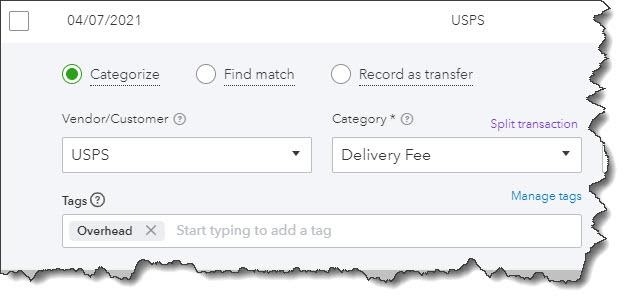
It’s critical that you connect to as many online financial institutions as possible, so you get a complete picture of your income and expenses. Once you have, click on Transactions in the toolbar, which should open to the Banking page. If you’re only going there to make sure there are no unrecognized entries, you’re missing out on some of QuickBooks Online’s transaction-tracking tools. In the image above, we’ve specified a vendor and chosen a Category and Tags. This will make your reports more meaningful and actionable.

If you don’t know what it means to Find Match, we can show you how that works. It’s a real time saver. 

Sales: Make it easier for customers to pay you.

We’ve written about accepting online payments in this column before. It’s especially important if you’re struggling. You may actually be losing sales if you don’t let potential customers pay online through a credit card or bank account transfer. And existing customers may pay faster if they can do business with you in that way.

QuickBooks Payments makes this possible. There are some nominal fees involved, but the potential increase in your income should more than cover them. Let us know if you want us to help you set up a merchant account.

When you set up a merchant account through QuickBooks Payments, you may find that your customer base will grow, and existing customers will pay faster.

Expenses: Categorize expenses with tax time in mind.

You’ve probably already filed your 2020 income taxes, but we’re well into 2021, and it’s not too early to start thinking about your current tax situation. QuickBooks Online helps you track your income carefully, but it’s equally important to make sure you know what your tax-related expenses are. You want to get every deduction and credit you can. So when you’re looking at transactions, like we described above, make very certain that you’re assigning the correct categories to each of them. 

We can help you run reports on a quarterly basis that should be of help when you make estimated tax payments. That way, you may be able to reduce your quarterly obligation during the 2021 tax year and won’t have to wait until you file in 2022 to see savings.

Time: Make sure your billable hours are billed.

Unless you have an organized, easy-to-use method for tracking billable time, some hours are likely to fall between the cracks. QuickBooks Online provides effective tools in this area. As you go through your downloaded transactions, you may see expenses that can be billed to a customer. Select the Customer/project and check the Billable box so you’ll be able to include it on their next invoice.

You can mark expenses as billable to customers in your Transactions register.

As you create time entries for you and/or your employees, you can also mark those hours as billable.

Reports: Run basic, critical reports regularly.

You can’t know how your business is doing financially unless you create reports. Besides the quarterly and standard financial reports we can run and analyze for you, you can—and should—be generating reports yourself through QuickBooks Online. Here are some of the ones we suggest:

  • Budget vs. Actuals. If you’ve put the time and effort into creating a budget, it’s critical that you gauge your progress regularly and make adjustments as needed.
  • Open Invoices. Who have you billed that hasn’t paid?
  • Accounts Receivable Aging Detail. Who owes you, and how far behind are they?
  • Sales by Product/Service Detail. What is selling well and what isn’t? You can make decisions about your product and service lines by viewing this report. This is especially important when your sales are sluggish.
  • Business Snapshot. This is a series of charts and lists that provides a quick visual overview of key data.

QuickBooks Online can’t, of course, revive your business if the pandemic has created conditions that are out of your control. But that shouldn’t stop you from controlling what you can, no matter what your situation is. It was designed not only to automate and streamline your daily accounting work, but also to provide the information you need as you evaluate your present situation and plan for the future. Please call on us if you need help making optimal use of QuickBooks Online.