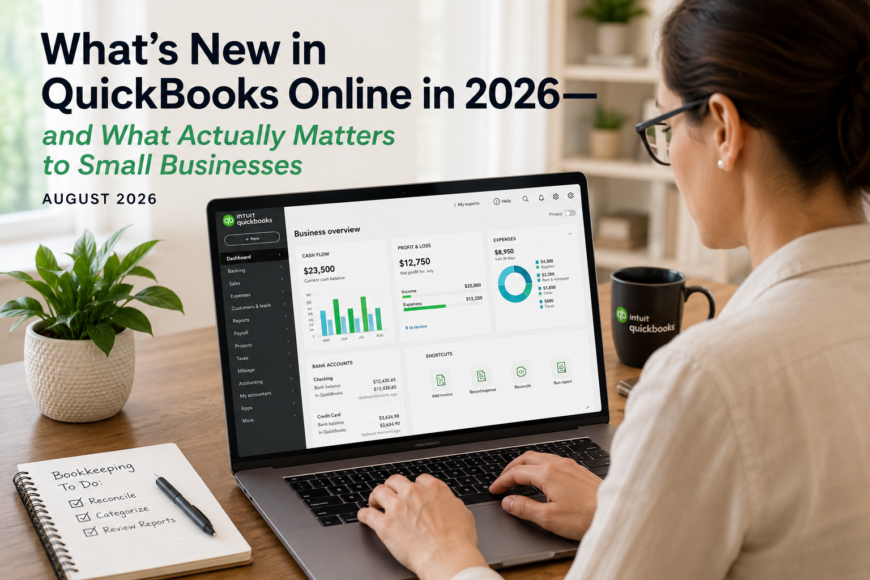
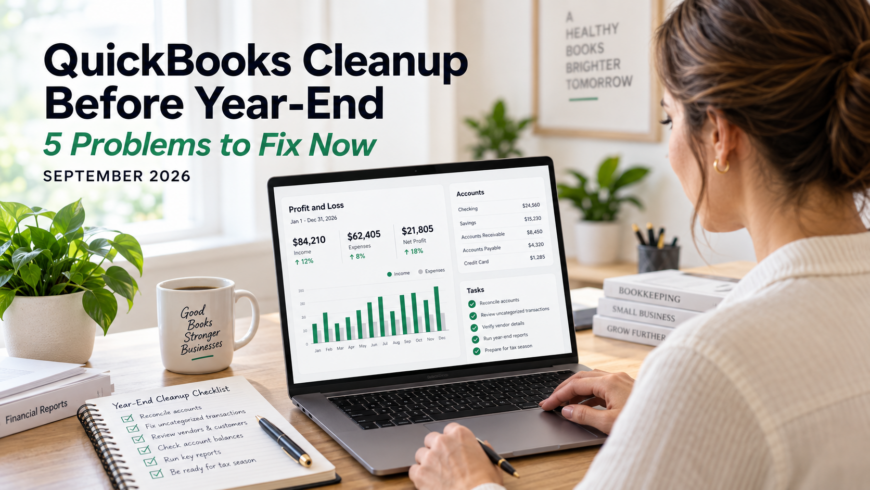
Small business bookkeeping workspace with organized financial records

Small Business Bookkeeping: Start the New Year With Clean Books

Small business bookkeeping is easiest—and most effective—when it’s handled in January. This is the one month business owners still have time to fix last year’s mistakes before tax season pressure hits.

If last year ended with uncategorized expenses, missing receipts, or balances that didn’t match the bank, you’re not behind—you’re normal. But waiting until March or April guarantees stress, higher costs, and messy reports.

Starting the year with clean books gives you clarity, confidence, and control over your business finances.

What Clean Small Business Bookkeeping Really Means

Clean small business bookkeeping is not just data entry. It means:

  • Bank and credit card accounts fully reconciled
  • Income and expenses categorized correctly
  • Personal transactions removed from business accounts
  • Accurate opening balances for the new year

If any of these are off, your financial reports are unreliable—and bad data leads to bad decisions.

Why January Is the Best Month for Small Business Bookkeeping

January bookkeeping sets the tone for the entire year. When your books are accurate from day one:

  • Cash flow is easier to track
  • Monthly reports actually make sense
  • Tax preparation becomes smoother
  • Business decisions are based on real numbers

January is also the ideal time to review your setup in QuickBooks, including your chart of accounts and automation rules. The IRS also recommends keeping organized financial records year-round, not just at tax time (see IRS small business recordkeeping guidelines).

January Small Business Bookkeeping Checklist

  • Reconcile all accounts through December 31
  • Review expense categories for accuracy
  • Confirm all income is recorded correctly
  • Separate personal and business expenses
  • Lock the prior year once books are clean

This one-time cleanup prevents accidental changes later and keeps reports consistent.

The Cost of Delaying Bookkeeping Until Tax Season

When small business bookkeeping is postponed until March or April:

  • Accounting and tax prep fees increase
  • Errors take longer to correct
  • Deductions are easier to miss
  • Stress multiplies fast

January cleanup costs less—in time, money, and sanity.

Start the Year With Confidence

Emerald Consulting helps small businesses clean up and maintain accurate bookkeeping so the year starts with clarity, not confusion. Strong bookkeeping isn’t optional—it’s foundational.


December bookkeeping checklist for small businesses using QuickBooks to close the year accurately

December Bookkeeping Checklist: Close the Year Strong with QuickBooks

December is not the month to wing it. It’s the month to get your numbers right.

This December bookkeeping checklist is built for small business owners who want to close the year clean, accurate, and tax-ready—especially if you use QuickBooks. A few focused steps now can save you time, money, and a January panic spiral that no amount of caffeine can fix.

If your books feel behind or messy, you’re not alone. What matters is fixing it before the year ends. This checklist walks you through exactly what to review, clean up, and lock down so you can start the new year with confidence instead of confusion.


1. Reconcile All Accounts (Non-Negotiable)

Start with the basics: reconciliation.

Before year-end, make sure every bank account, credit card, loan, and line of credit is reconciled in QuickBooks through November—and as far into December as possible. If balances don’t match, your reports are unreliable. Period.

Reconciliation is how you confirm that what QuickBooks shows actually matches reality. Skipping this step guarantees problems later, especially during tax prep.


2. Clean Up Uncategorized and Duplicate Expenses

Uncategorized transactions are a red flag, not a “later problem.”

Run your Uncategorized Expense report and clean it up before December closes. While you’re there, look for duplicate charges, misclassified expenses, and personal purchases mixed into business accounts.

The cleaner your books are now, the less you’ll pay your tax preparer—and the fewer questions you’ll have to answer in January.


3. Review Your Profit and Loss Report (Even If You’re Nervous)

Your Profit and Loss report tells the real story of your business.

In QuickBooks, review your P&L month by month and for the full year. Pay attention to rising costs, underperforming services, and trends that affect cash flow.

Avoiding this report doesn’t protect you. Understanding it helps you make better decisions in the new year.


4. Check Payroll and Prepare for 1099s

December is when payroll mistakes come back to haunt you.

Before the year ends, confirm employee details, payroll totals, and tax liabilities in QuickBooks. Review contractor payments and make sure vendor information is accurate so 1099s can be issued without delays.

Fixing payroll errors now is far easier than correcting them after filings begin.


5. Lock the Books After Final Review

Once everything is reconciled and reviewed, close the books in QuickBooks.

Closing the year prevents accidental changes and ensures your reports stay consistent for tax preparation. It’s a small step that protects the work you just did and keeps everyone on the same page.


A Word of Honest Advice

January is not the time to “get organized.”
December is.

If your books are behind, inconsistent, or causing stress, professional QuickBooks support can make a measurable difference. Emerald Consulting helps small businesses clean up their books, stay organized, and maintain accurate financial records year-round.

Clear books mean clearer decisions—and a stronger start to the new year.


Year-End Bookkeeping FAQs

What is a December bookkeeping checklist?
A December bookkeeping checklist is a year-end process that ensures all financial accounts, expenses, and payroll records are accurate before closing the books for tax season.

Why is December bookkeeping important for small businesses?
December bookkeeping reduces tax filing errors, lowers preparation costs, and gives business owners reliable financial reports before the new year begins.

Should I close my books in QuickBooks at year-end?
Yes. Closing your books in QuickBooks prevents accidental changes and ensures consistent reporting for tax preparation.

Can a bookkeeper help clean up QuickBooks before year-end?
Yes. A professional bookkeeper can reconcile accounts, correct expense categorization, and prepare clean reports before January.

Emerald Consulting provides QuickBooks bookkeeping services for small businesses in Texas and surrounding areas.

November bookkeeping checklist infographic showing icons for reconciling accounts, cleaning categories, reviewing financials, preparing payroll, and planning deductions

November Bookkeeping Checklist: Get Your QuickBooks Ready Before Year-End Hits

If you want to stay ahead of year-end chaos, your November bookkeeping checklist is the most important financial tool you’ll use this month. November gives you a quiet window to clean up QuickBooks, correct lingering issues, and prep for tax season before December turns everything into a scramble. This checklist walks you through the essential steps every small business should tackle right now to keep your books accurate and your workflow running smoothly.


1. Reconcile Every Account

Start your November bookkeeping checklist by reconciling all bank accounts, credit cards, payment apps, and loans. If money moves through it, reconcile it. Clean numbers now prevent costly surprises later and give you an accurate picture of your cash flow heading into the new year.

2. Clean Up Categories & Vendors

Fix duplicate vendors, correct miscategorized expenses, and clear out old “Ask My Accountant” entries. A clean chart of accounts ensures your financial reports reflect the real story of your business.

3. Review Your Profit & Loss

Use your P&L to pinpoint what’s working and what’s draining cash. November is the ideal time to make strategic decisions, adjust spending, or plan investments before year-end deadlines.

4. Prepare Payroll & 1099s

Gather W-9s, verify employee and contractor information, and review payments to ensure proper classification. Getting this ready now makes January 1099 filing much easier.

5. Maximize Year-End Deductions

Your November bookkeeping checklist should end with a strategic tax review. If you need equipment, software, or supplies, November is the perfect month to plan those deductible purchases.

Need help with QuickBooks cleanup or year-end prep? Emerald Consulting is here to make bookkeeping easier, cleaner, and stress-free.

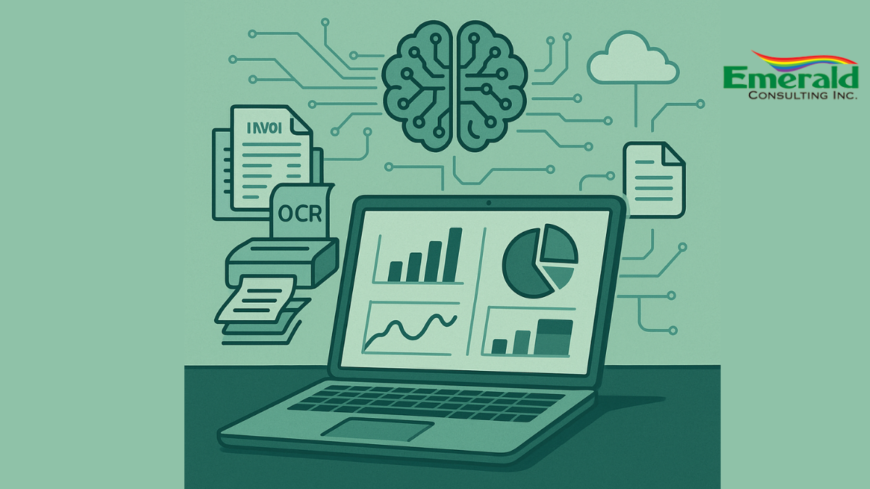
AI-powered bookkeeping automation dashboard showing real-time financial charts, OCR scanning invoices, and machine-learning network.

The Future of Bookkeeping: Embracing Automation and AI

In today’s fast-paced business environment, AI-Powered Bookkeeping Automation is redefining how companies manage their finances. At Emerald Consulting Inc., we believe the future of bookkeeping lies in intelligent automation and artificial intelligence (AI). By harnessing these emerging technologies, businesses can not only streamline their financial operations but also unlock real-time insights to drive more strategic decision-making.


Why AI-Powered Bookkeeping Automation Matters in Bookkeeping

  • Efficiency Gains: Routine tasks—bank reconciliations, invoice processing, expense categorization—can be completed in a fraction of the time, freeing your team for high-value activities.
  • Accuracy & Compliance: AI-driven tools minimize human error and flag anomalies, helping you stay compliant with GAAP and IFRS standards.
  • Cost Savings: Automating labor-intensive processes reduces overhead, allowing you to reinvest resources into business growth.
  • Strategic Insights: Real-time dashboards powered by machine learning offer forecasting and trend analysis that manual methods simply can’t match.

Key Technologies Powering AI-Powered Bookkeeping Automation

  1. Optical Character Recognition (OCR)
    OCR software extracts data from scanned receipts and invoices, automatically populating your bookkeeping system with over 95% accuracy—dramatically cutting down on manual data entry.
  2. Machine Learning for Categorization
    AI models learn from your historical transactions to accurately categorize expenses and revenues. As the system adapts, categorization becomes faster and more precise, reducing the need for after-the-fact corrections.
  3. Chatbots & Virtual Assistants
    Conversational AI can answer common bookkeeping queries—“What was our total expenses last month?”—and even initiate simple tasks like generating financial statements on demand.
  4. Predictive Analytics
    By analyzing cash-flow patterns, AI can forecast future financial health, helping you anticipate potential shortfalls and optimize working capital.

How Your Business Can Adapt to AI-Powered Bookkeeping Automation

  1. Assess Current Workflows
    Map out your existing bookkeeping processes. Identify repetitive tasks ripe for automation—invoice approvals, bank feeds, and expense reimbursements.
  2. Choose the Right Platform
    If you’re using QuickBooks, explore built-in AI features like Automatic Expense Categorization and Smart Reconciliation. Learn more in our Mastering QuickBooks: Advanced Tips for Experienced Users post and check out QuickBooks AI Features for deeper insights.
  3. Partner with Experts
    Implementing AI-driven bookkeeping requires strategic planning. Our Bookkeeping Services ensure seamless migration, staff training, and ongoing support.
  4. Test & Iterate
    Roll out automation modules in phases. Start with low-risk processes, measure accuracy improvements, and expand to more complex tasks as confidence grows.
  5. Maintain Oversight
    While AI automates routine work, human oversight remains crucial. Set up exception-reporting alerts to review flagged transactions and ensure compliance.

Best Practices for Successful AI-Powered Bookkeeping Automation

  • Data Hygiene: Clean and standardized data sets improve AI performance. Consider a one-time cleanup project to remove duplicates and correct inconsistencies.
  • Security & Privacy: Choose platforms with robust encryption and SOC-compliant data centers. Review your vendor’s privacy policy and ensure GDPR/CCPA alignment—see AICPA on Automation for guidance.
  • Continuous Training: As your business evolves, retrain AI models to recognize new expense categories and accounting rules.
  • Change Management: Communicate benefits and provide hands-on training to your team to minimize resistance and maximize adoption.

The Road Ahead: What to Expect with AI-Powered Bookkeeping Automation

  • Hyper-Automation: Integration of AI with robotic process automation (RPA) will allow end-to-end workflows, from invoice receipt to payment execution, to run autonomously.
  • AI-Driven Advisory: Bookkeepers will shift toward strategic advisors, interpreting AI-generated insights to guide business growth.
  • Blockchain Integration: Secure, immutable ledgers will complement AI by providing trustworthy audit trails and fraud prevention.

Frequently Asked Questions

Q: What is bookkeeping automation?
A: The use of software and AI to perform routine accounting tasks—like transaction entry, reconciliation, and report generation—without manual intervention.

Q: Will AI replace human bookkeepers?
A: No. Automation handles repetitive tasks, enabling bookkeepers to focus on strategic analysis, advisory services, and relationship-building.

Q: How much does it cost to implement AI in bookkeeping?
A: Costs vary by platform and business size. Entry-level AI features may be included in your QuickBooks subscription, while advanced analytics or custom integrations require additional investment.


External Links


Take the next step with Emerald Consulting Inc.! Contact us to schedule a complimentary consultation and see how AI-Powered Bookkeeping Automation can revolutionize your financial operations.

Kickstart your 2025 financial goals with expert bookkeeping.

Financial Success in 2025: Start Strong with Emerald Consulting

Starting 2025 with a clear financial strategy is the key to success. At Emerald Consulting, we help businesses achieve financial success in 2025 by providing expert bookkeeping and tailored financial solutions. Whether you’re focused on streamlining bookkeeping or setting long-term goals, we’re here to support you every step of the way.


Why Financial Success in 2025 Requires Expert Planning

Financial success begins with a solid plan. January is the perfect time to:

  • Review your 2024 financial performance.
  • Set achievable budgets and financial goals for the new year.
  • Identify areas for growth and cost optimization.

Visit our Services page to learn more about how Emerald Consulting can support your financial planning needs.


Bookkeeping: The Foundation for Financial Success

Accurate bookkeeping is critical for your business’s financial health. Emerald Consulting specializes in handling reconciliations, cash flow analysis, and monthly financial reports. Our expertise in QuickBooks ensures accuracy, while our knowledge of IRS tax updates keeps you compliant.


Set Realistic Goals for 2025 Growth

Emerald Consulting helps businesses like yours set achievable financial goals. With detailed reports and insights, you’ll gain a clear understanding of your finances, enabling strategic decisions for growth. Check out Investopedia for additional resources on financial goal setting.


Partner with Emerald Consulting for 2025 Financial Success

Start the year right with Emerald Consulting. Let us handle your bookkeeping and financial management while you focus on growing your business. Contact us today to schedule a consultation.

Optimizing Performance in QuickBooks Online

QuickBooks Online (QBO) is a powerful tool that helps businesses manage their finances with ease and efficiency. However, like any software, its performance can be optimized to ensure you’re getting the most out of its features. Here are some strategies to streamline your accounting processes and enhance your experience with QuickBooks Online.

1. Regularly Update Your Software

QuickBooks Online is continually updated with new features, security patches, and performance improvements. Ensuring that your software is always up to date can help you avoid bugs and take advantage of the latest enhancements. Set your account to update automatically or check for updates regularly to stay current.

2. Clean Up Your Data

Over time, your QuickBooks data file can become cluttered with unused accounts, old transactions, and outdated information. Regularly cleaning up your data can significantly improve performance. This includes merging duplicate accounts, archiving old data, and deleting unused list items. Use the built-in cleanup tools in QuickBooks to help maintain a lean, efficient data file.

3. Optimize Your Internet Connection

Since QuickBooks Online is cloud-based, a strong and stable internet connection is crucial for optimal performance. Ensure you have a high-speed internet connection and consider upgrading your bandwidth if you frequently experience slow performance. Close other applications and tabs that may be consuming bandwidth and affecting your QuickBooks experience.

4. Use Browser Best Practices

Your web browser plays a significant role in how well QuickBooks Online performs. Use a supported browser like Google Chrome or Mozilla Firefox, and keep it updated to the latest version. Clear your browser cache regularly to prevent data build-up, which can slow down performance. Additionally, using private or incognito mode can sometimes improve speed by eliminating the interference of browser extensions and cookies.

5. Streamline Your Workflow with Integrations

QuickBooks Online integrates with numerous third-party applications that can help automate and streamline various accounting tasks. Integrating your payroll, invoicing, and time-tracking systems with QuickBooks can reduce manual data entry, minimize errors, and save time. Explore the QuickBooks App Store to find tools that can enhance your workflow.

6. Customize Your Dashboard and Reports

Tailoring QuickBooks to fit your business needs can make navigation more intuitive and efficient. Customize your dashboard to display the most relevant information for your daily operations. Create and save customized reports that you frequently use, so you can quickly access the data you need without repetitive setup.

7. Train Your Team

Ensure that all team members who use QuickBooks Online are adequately trained on its features and best practices. Proper training can prevent user errors that slow down the system and lead to inaccurate data entry. Consider investing in QuickBooks Online training courses or consulting with a QuickBooks ProAdvisor to ensure your team is proficient.

8. Regularly Back Up Your Data

While QuickBooks Online automatically backs up your data, having your own backup plan adds an extra layer of security. Regularly exporting your data and storing it securely ensures you can quickly recover in the event of data loss or corruption.

By implementing these strategies, you can optimize the performance of QuickBooks Online and streamline your accounting processes. This will not only save time and reduce frustration but also ensure your financial data is accurate and up-to-date, enabling you to make better business decisions.

5 QuickBooks Online Tasks You Should Do Before January 1

It’s probably your busiest month of the year. But there are things you can do to make your return from the holidays less stressful.

December always goes by so quickly. Seems like you’ve just finished Thanksgiving dinner and it’s time to ring in the New Year. You could probably spend the entire month on your personal obligations. But it’s also the end of the year, which means your busiest period if you’re a retailer. Even if you’re not, you probably have sales goals to try to meet. And you may have employee issues that need to be addressed before the calendar turns over.

On top of all of this, you should be closing out your books for the current year (as much as you can) in preparation for the new one. If you’ve been using QuickBooks Online conscientiously all year, your job will be a lot easier. But you’ll still need to carve out some time for year-end tasks.

We don’t expect that you’ll necessarily be able to wrap absolutely everything up by New Year’s Eve. You may be waiting for your customers and employees to do their part. But here are five things you can do amidst all of your other personal and professional plans that will help you get a jump on January.

Analyze your 2022 sales.

You won’t have your final numbers until the year is over, but you can get a good start in December. There are several QuickBooks Online reports that can give you a clear, understandable look at your 2022 sales. Click Reports in the toolbar and scroll down to Sales and customers. You can run reports that will tell you what your sales were by Class, Customer, Customer Type, and Product/Service, in summary or detail. The reports are customizable, so you can specify date ranges and group the results by, for example, Transaction Type, Customer, and Account.

You can customize and run QuickBooks Online’s Sales reports.

Warning: If you’re not clear about whether you should run reports in Cash or Accrual mode, let us help you with this. The distinction is important.

Know What You Owe

If money is tight at the end of the year, this will be a challenge. But you don’t want to come back from the holidays to a lot of past-due notices. To see what still needs to be paid, click Reports again and scroll down to What you owe. If you want the straight scoop right away, run Unpaid Bills. For a more detailed look, create the Accounts payable aging detail report. This groups your outstanding payables by days past due.

Know Who Still Owes You Money

This is a question that’s probably on your mind all year, but it’s especially important as the year winds down. It may be difficult to get delinquent customers to pay up in December, but you should at least know where you stand with them. Click the Reports tab again and scroll down Who owes you. Generate two reports there: Accounts receivable aging detail and Open Invoices

You might also want to spend an hour coming up with some strategies that would encourage customers to pay faster. If you’re at a loss about this, we could sit down together and come up with a plan.

Create statements for past-due customers

Customer statements are something like reports. They display sales transactions within a given period. Statements can serve two purposes. Sometimes, customers just want a list of their invoices and payments for their records. You can also use statements as a reminder to customers who are past due on their accounts.  Click New in the upper left corner, and then click Statement under Other.  There are three types, but you’d be most likely to create and send two of them:

  • Open Item. Displays all open, unpaid invoices for the last 365 days. 
  • Transaction Statement. Lists all transactions for the selected date range.

You can send statements to customers to remind them of overdue payments or just to provide a record of transactions for a given period.

Clean up your customers and vendor lists

If you only have a few of each, your list is probably current. But if you’ve been adding customers or vendors for years without ever editing the list, you’re probably spending too much time scrolling. You don’t have to delete them. You can just make them inactive. Click Sales in the toolbar, then Customers. If you know a customer has no open activity and you want to hide them, click in the box in front of the company or customer’s name. Repeat this for as many as you want, then click Batch actions in the upper left, then Make inactive.

A Busy Month

Don’t worry if you don’t get to all of these by the end of the year. But do add them to your January task list if you don’t. You might also consider having us run the standard financial reports that are available in QuickBooks Online Reports, under For my accountant. You can create reports like Trial Balance yourself, but they can be hard to analyze accurately. We’d be happy to set up a time after the first of the year to go over these after all of your 2022 transactions are in.

How to Give Your QuickBooks Online Forms a New Look

Your sales forms are a part of your company’s identity. Make them professional, personalized, and polished.

Your first impression of a business probably comes from a website or a mailing or an advertisement. The second might be from an invoice or sales receipt. What does it say about that company if its printed or digital sales forms are poorly designed or hard to read or just plain unattractive?

Customers form opinions about you not only from the quality of your products or services, but also by the professionalism and aesthetics of your written communications. Putting some effort into making them look good isn’t superficial. It’s an important part of your branding.

QuickBooks Online provides the tools you need to make your sales forms appealing, understandable, and consistent. They enhance your image and have impact on your customers’ overall impression of your business. Here’s how you can make them a part of your identity.

Where Do You Start?

QuickBooks Online comes with a default invoice form to get you started. You can either edit this one or create a new one. You can also make your own estimates and sales receipts. 

Click the gear icon in the upper right corner and select Custom form styles under Your Company. You’ll see the default invoice labeled Standard. We’ll leave that one as is and create a new one so there’s always a clean version. Click the down arrow next to New style in the upper right and select Invoice. You’ll see a copy of the default invoice, like this:

Table

Description automatically generated

This is QuickBooks Online’s default invoice template. You can make a copy of it and modify it for your own company.

You’ll see your modification options in the left pane of this screen. Your choices are divided into three different sections. Before you start working with them, enter a name for your new template in the field at the top. QuickBooks Online will have suggested a name, but you can change it to something descriptive that you’ll remember, like My Modified Invoice 1022

Changing the Form’s Look

The first tab, Design, should be highlighted. From here, you can:

  • Change up the template. Choose from one of the six options that QuickBooks Online offers.
  • Add a logo. Browse your system files to find your logo.
  • Splash on some color. Select a color palette from the ones offered.
  • Get choosy with your font. Select a new font type and size.
  • Edit print settings. Change the margins and other print options.

Editing the Content

When you’re done there, click the Content tab. You’ll notice that your invoice, which appears in the right pane, is grayed out. There are three pencil icons on the right side of the form. Click the one in the upper right corner, next to the invoice number. The top third of the form becomes active, and the content in the left pane changes to match the fields on the right. As you make changes in the left pane, like checking a box to add a phone number, the actual sample invoice changes to reflect that.

Graphical user interface, text, application

Description automatically generated

When you add, edit, or delete content in the left vertical pane…

Text

Description automatically generated

…the changes are reflected in the sample invoice in the right pane. Your company information will appear like this across all of your sales forms.

As you click on the other two pencil icons in the sample invoice, the left pane displays your options for those content areas. You have control over all of the content on your forms. It’s even possible to add your own custom fields. Let us know if you want to do so and we’ll show you how.

Readying Customer Emails 

The third tab on the customization screen, labeled Emails, shows you what your form will look like when you email it to your customer. Again, your working area is in the left pane, with the finished result appearing on the right. You have multiple options here, including text for the subject line, greeting, and message. You can also edit the text for reminder emails. 

When you’re done customizing, you can preview the PDF that will be attached to your customer emails. Then click Done. Your new invoice will appear on the Custom form styles page. Whenever you want to modify an existing sales form, click Edit at the end of its row. You can also make any form the default by opening the Edit menu and clicking Make default

Making your sales forms the best that they can be doesn’t really take that long. And it will demonstrate to your customers that you care not only about the quality of your products and/or services, but also about your communications with them. If we can be of any help as you work with forms modification in QuickBooks Online, please let us know. We’ll be happy to walk you through the process.

How QuickBooks Online Tracks Products and Services, Part 2

Last month, we created records for products and services. Now, we’ll talk about where they’re used in QuickBooks Online.

If you’ll recall, we went over two product-related concepts in QuickBooks Online in last month’s column. We first discussed getting the site ready for creating and using product and service records. You click the gear icon in the upper right and select Account and Settings, then click the Sales tab to indicate your preferences.

To create a product or service record, you hover your mouse over Sales in the left vertical pane on the main page and click Products and services. Click New in the upper right corner and open a blank record for an Inventory or Non-inventory part, a Service, or a Bundle (assembly). Once you complete a record and save it, it will appear in the list back on the Product and services page.

Working with Products and Services

That’s where we’ll start today, on the Products and services screen. This is a comprehensive table, a dashboard (or home page) for your products and services. It displays real-time information about your items’ pricing and inventory levels, as well as their type and tax status. At the top of the page, you’ll see big, colorful buttons that provide a total of the number of items that are low on stock or out of stock. When you click on one, a list of those products appears.

Application

Description automatically generated with low confidence

QuickBooks Online’s Products and services page displays inventory levels and warns you when your stock is low and at zero.

Each row on this screen contains details about the item listed there, like Description, Sales Price and Cost, and Qty On Hand. If you look down at the end of the row, you’ll see options for several types of Actions: Edit, Make inactive, Run report, and Duplicate. Click the gear icon above the table to modify the columns in the table. 

The More menu at the top of the screen contains more options: Manage categories, Run reports, and Price rules. If you want to know what actions you can take on multiple items simultaneously, check the box in front of each and click the Batch actions menu, over to the right (Adjust quantity, Reorder, etc.).

Warning: Be very careful using the Adjust quantity option. There are legitimate reasons for employing it, but you need to make very sure that you understand how this will affect other areas of your accounting. Please ask us if you’re unsure.

Using Products and Services in Transactions

Once you start using product and service records in transactions, you’ll see why we suggested that you create those early on and make them as comprehensives as possible. While you can add products and services in the process of creating an invoice, for example, it’s much easier if you have them ready to go.

Let’s look at a sales receipt to see how this works. Click +New in the upper right corner and select Sales receipt. Select a Customer in the first field and verify that the related fields on the form were filled out correctly. Check and make any changes necessary in the Sales receipt date, Payment method, and Deposit to fields. 

Graphical user interface, application

Description automatically generated

Once you’ve built up a list of products and services, they’ll be available when you create transactions.

Enter the Service Date, and then click the down arrow in the field under Product/Service. The top of the list has an entry labeled +Add new. Click it if you need to add a product or service on the fly, or just select the existing one that you want. QuickBooks Online will fill in the Rate, Amount, and Tax (status). You only have to enter the Qty (quantity) that you’re selling. 

If you have more items or services to add, you can do so on the next line(s). When you’re done, check the numbers in the lower right and save the transaction. QuickBooks Online will adjust your inventory to account for any items you just sold. You can see this change by going back to the Products and Services screen. Or you can run reports, including:

  • Sales by Product/Service
  • Product/Service List
  • Inventory Valuation Detail
  • Physical Inventory Worksheet

Supply Chain Woes?

It seems that the serious supply chain problems we were experiencing in previous months have eased up some, but you may still be having trouble stocking some items. We hope this isn’t affecting you too much. 

QuickBooks Online, though, can help ensure that you know ahead of time when you must reorder. Its inventory-tracking capabilities can also alert you to items that aren’t selling well, so you don’t get overstocked on anything. And the ability to pull up product and service records when you’re creating transactions saves time and keeps your inventory levels accurate. Please let us know if you need assistance with this element of your accounting – or any of QuickBooks Online’s other tools.

How QuickBooks© Online Helps You Track Mileage

With gas prices so high, you need to track your travel costs as closely as possible. Consider getting a tax deduction for your business mileage.

If you drive even a little for business, it’s easy to let mileage costs slide. After all, it’s a pain to keep track of your tax-deductible mileage in a little notebook and do all the calculations required. If you do rack up a lot of business miles, you probably forget to track some trips and end up losing money.

QuickBooks Online offers a much better way. Its Mileage tools include simple fill-in-the-blank records that allow you to document individual trips. You can either enter the starting point and destination and let the site calculate your mileage and deduction or enter the number of miles yourself.

If you use QuickBooks Online’s mobile app, it can track your miles automatically as you drive (as long as you have the correct settings turned on). Here’s a look at how all of this works.

Setting Up 

To get started, click the Mileage link in QuickBooks Online’s toolbar. The screen that opens will eventually display a table that contains information about your trips, but you need to do a little setup first. Click the down arrow next to Add Trip in the upper right corner and select Manage vehicles. A panel will slide out from the right. Click Add vehicle.

A picture containing text

Description automatically generated

You’ll need to supply information about your vehicles before you can start entering trips.

You’ll need to supply the vehicle’s year, make, and model. Do you own or lease it, and on what date was the vehicle purchased or leased and put into service? Do you want to have your annual mileage calculated by entering odometer readings or have QuickBooks Online track your business miles driven automatically? When you’re done making your selections and entering data, click Save.

Entering Trip Data

You can download trips as CSV files or import them from Mile IQ, but you’re probably more likely to enter them manually. Click Add Trip in the upper right corner. In the pane that opens, you’ll enter the date of the trip and either the total miles or start and end point. You’ll select the business purpose and vehicle and indicate whether it was a round trip. When you’re done, click Save. The trip will appear in the table on the opening screen, and your current possible total deduction will be in the upper left corner, along with your total business miles and total miles.

If you want to designate a trip as personal, click the box in front of the trip in that table. In the black horizontal box that appears, click the icon that looks like a little person, then click Apply. Now, the trip will appear in the Personal column and will not count toward your business tax-deductible mileage. 

Graphical user interface, text, application

Description automatically generated

When you select a trip in the Mileage table, you can mark it as personal so it’s not included in your business tax-deductible miles.

Personal Trips Can Count, Too

If you use your vehicle(s) for personal as well as business purposes, tracking some of those miles can also mean a tax deduction. For tax year 2022, you can deduct 18 cents per mile for your travel to and from medical appointments. Note: Medical mileage is only deductible if medical exceeds a certain percent of AGI. Be sure to check with the IRS yearly tax code, as they update the mileage amounts annually.

And if you do volunteer work for a qualified charitable organization, the miles you drive in service of it can be deducted at the rate of 14 cents per mile. You can also claim the cost of parking and tolls, as long as you weren’t reimbursed for any of these expenses. Obviously, the IRS wants you to keep careful records of your charitable mileage, and QuickBooks Online can provide them.

QuickBooks Online doesn’t track these deductions, but you’ll at least have a record of the miles driven.

Auto-Track Your Miles

The easiest way to track your mileage in QuickBooks Online is by using its mobile app. You can launch this and have it record your mileage automatically as you’re driving. Versions are available for both Android and iOS, and they’re different from each other. They also have more features than the browser-based version of QuickBooks Online, like maps, rules, and easier designation of trips as business or personal.

Graphical user interface, application

Description automatically generated

The iOS version of Mileage in the QuickBooks Online app

In both versions, you’ll need to click the menu in the lower right corner after you’ve opened the QuickBooks Online app and select Mileage. Make sure Auto-Tracking is turned on. Your phone’s location services tool must be turned on, too. There are other settings that vary between the two operating systems. You can search the help system of either app to make sure you get your settings correct if the onscreen instructions aren’t clear enough.

Of course, you won’t see the fruits of your mileage deductions until you file your 2022 taxes. But you can factor these savings in as you’re doing your tax planning during the year. Please let us help if you’re having any trouble with QuickBooks Online’s Mileage tools, or if you have questions with other elements of the site.

With gas prices so high, you need to track your travel costs as closely as possible. Consider getting a tax deduction for your business mileage.