
monthly bookkeeping services helping a small business owner review QuickBooks reports

Monthly Bookkeeping Services: Spring Clean Your Books Before Tax Season

Running a small business feels easier when you understand your numbers. That is exactly what monthly bookkeeping services give you. When you spring clean your books before tax season, you cut stress, avoid last‑minute surprises, and base decisions on real data instead of guesses.

Why Monthly Bookkeeping Services Matter in March

March is a good month to catch up and reset your books for the year. Instead of waiting for tax time and digging through old receipts, you keep your QuickBooks file current each month. With monthly bookkeeping services, your records stay organized and your CPA gets clean numbers to work with.

When you do this, you can:

  • See if your business is profitable right now.
  • Spot cash flow issues before they become crises.
  • Make tax preparation faster and easier.
  • Use your Profit & Loss and Balance Sheet as tools instead of surprises.

How Monthly Bookkeeping Services Clean Up QuickBooks

Think of your QuickBooks file like your office. If no one maintains it, clutter builds up. Monthly bookkeeping services give your books a regular cleanup so you can focus on clients and operations instead of transactions.

Most monthly bookkeeping packages include:

  • Bank and credit card reconciliations every month.
  • Accurate income and expense categorization.
  • A review of odd or duplicate transactions.
  • Monthly Profit & Loss and other key reports.
  • Simple cash flow checks so tight months do not surprise you.

At Emerald Consulting, QuickBooks experts structure your file the right way from the start. You see reports that match how your business actually runs, not just default screens in the software.

QuickBooks Plus Monthly Bookkeeping: A Strong Combo

QuickBooks is powerful, but software alone does not keep books clean. When you pair QuickBooks with monthly bookkeeping services, you get clear data plus expert oversight.

This combo helps you:

  • Use a chart of accounts that fits your industry.
  • Keep recurring invoices, bills, and subscriptions handled on time.
  • View reports that highlight what matters most to you.
  • Get plain‑English answers to “what do these numbers mean?”

If you haven’t reviewed your QuickBooks setup in a while, March is a smart time to do that along with your monthly bookkeeping routine.

Simple March Action Plan

If your books feel behind or confusing, you are not alone. Many owners delay bookkeeping because they are busy, but that delay makes everything harder later.

Use this simple March plan:

  1. Decide to use monthly bookkeeping services going forward.
  2. Reconcile all open months in QuickBooks so balances match your bank.
  3. Clean up any “uncategorized” or “miscellaneous” entries.
  4. Schedule a short monthly review to look at your key reports.

Emerald Consulting offers remote bookkeeping and QuickBooks services so you can get expert support without hiring a full‑time bookkeeper. If you are ready to spring clean your books, you can reach our team through the contact page on our website.


Optimizing Performance in QuickBooks Online

QuickBooks Online (QBO) is a powerful tool that helps businesses manage their finances with ease and efficiency. However, like any software, its performance can be optimized to ensure you’re getting the most out of its features. Here are some strategies to streamline your accounting processes and enhance your experience with QuickBooks Online.

1. Regularly Update Your Software

QuickBooks Online is continually updated with new features, security patches, and performance improvements. Ensuring that your software is always up to date can help you avoid bugs and take advantage of the latest enhancements. Set your account to update automatically or check for updates regularly to stay current.

2. Clean Up Your Data

Over time, your QuickBooks data file can become cluttered with unused accounts, old transactions, and outdated information. Regularly cleaning up your data can significantly improve performance. This includes merging duplicate accounts, archiving old data, and deleting unused list items. Use the built-in cleanup tools in QuickBooks to help maintain a lean, efficient data file.

3. Optimize Your Internet Connection

Since QuickBooks Online is cloud-based, a strong and stable internet connection is crucial for optimal performance. Ensure you have a high-speed internet connection and consider upgrading your bandwidth if you frequently experience slow performance. Close other applications and tabs that may be consuming bandwidth and affecting your QuickBooks experience.

4. Use Browser Best Practices

Your web browser plays a significant role in how well QuickBooks Online performs. Use a supported browser like Google Chrome or Mozilla Firefox, and keep it updated to the latest version. Clear your browser cache regularly to prevent data build-up, which can slow down performance. Additionally, using private or incognito mode can sometimes improve speed by eliminating the interference of browser extensions and cookies.

5. Streamline Your Workflow with Integrations

QuickBooks Online integrates with numerous third-party applications that can help automate and streamline various accounting tasks. Integrating your payroll, invoicing, and time-tracking systems with QuickBooks can reduce manual data entry, minimize errors, and save time. Explore the QuickBooks App Store to find tools that can enhance your workflow.

6. Customize Your Dashboard and Reports

Tailoring QuickBooks to fit your business needs can make navigation more intuitive and efficient. Customize your dashboard to display the most relevant information for your daily operations. Create and save customized reports that you frequently use, so you can quickly access the data you need without repetitive setup.

7. Train Your Team

Ensure that all team members who use QuickBooks Online are adequately trained on its features and best practices. Proper training can prevent user errors that slow down the system and lead to inaccurate data entry. Consider investing in QuickBooks Online training courses or consulting with a QuickBooks ProAdvisor to ensure your team is proficient.

8. Regularly Back Up Your Data

While QuickBooks Online automatically backs up your data, having your own backup plan adds an extra layer of security. Regularly exporting your data and storing it securely ensures you can quickly recover in the event of data loss or corruption.

By implementing these strategies, you can optimize the performance of QuickBooks Online and streamline your accounting processes. This will not only save time and reduce frustration but also ensure your financial data is accurate and up-to-date, enabling you to make better business decisions.

APP INTEGRATION

Maximizing Efficiency: Integrating Apps with QuickBooks®

In today’s fast-paced business world, efficiency is not just a goal; it’s a necessity. One of the most effective ways to enhance efficiency is through the integration of apps with QuickBooks®, a leading accounting software. The latest apps that integrate with QuickBooks® are designed to automate tasks, streamline processes, and ultimately improve business efficiency.

1. Automation with Apps: A Game Changer

Apps like Expensify, TSheets, and Hubdoc are transforming how businesses handle everyday tasks. Expensify simplifies expense reporting by allowing users to scan receipts and automatically import them into QuickBooks®. TSheets offers time tracking solutions that integrate seamlessly with QuickBooks®, simplifying payroll and invoicing. Hubdoc streamlines data capture by fetching bills, receipts, and invoices and syncing them with QuickBooks®, making bookkeeping a breeze.

2. Streamlining Processes for Efficiency

For e-commerce businesses, apps like Shopify and WooCommerce offer direct integration with QuickBooks®. This integration means sales data flow directly into the accounting system, ensuring accuracy and saving hours of data entry. Inventory management apps like Fishbowl and SOS Inventory sync with QuickBooks® to offer real-time inventory tracking, reducing the risk of stockouts or overstock.

3. Selecting the Right Apps for Your Business

Choosing the right apps for your business needs is crucial. Here’s a simple guide:

  • Assess Your Needs: Identify the tasks or areas in your business that require more efficiency.
  • Research the Options: Look for apps that specifically address these areas and check their compatibility with QuickBooks®.
  • Read Reviews and Testimonials: Understanding the experiences of other businesses can provide valuable insights.
  • Consider Scalability: Ensure the app can grow with your business.
  • Trial and Evaluate: Many apps offer free trials. Use them to evaluate their impact on your business processes.

By integrating the right apps with QuickBooks®, businesses can automate mundane tasks, gain valuable insights, and focus more on growth and development. The key is to understand your specific needs and choose apps that align with those needs, ensuring that your business runs as efficiently as possible.

computer

QuickBooks®101: A Beginner’s Guide to Getting Started

Welcome to the world of QuickBooks, the go-to accounting software for small to medium-sized businesses. This beginner’s guide is designed to help you navigate through the basic features and interface of QuickBooks, simplifying your journey into the realm of accounting.

Understanding the Interface QuickBooks offers a user-friendly interface with a dashboard that presents everything you need at a glance. Key sections include ‘Banking’, ‘Sales’, ‘Expenses’, ‘Employees’, and ‘Reports’. This layout makes it easy to track your business’s financial health.

Setting Up Your Account

  1. Creating a Company File: Start by setting up a company file. This is your business’s financial profile where you record transactions, manage accounts, and prepare for taxes.
  2. Entering Your Business Information: Fill in your business name, industry, and other details. This helps QuickBooks tailor its features to your specific needs.
  3. Connecting Your Bank Account: Link your business bank account and credit cards to QuickBooks. This automates income and expense tracking, saving you time.

Exploring Basic Functions

  • Invoicing: Create professional invoices for your clients. Customizing invoices with your logo and company details is straightforward.
  • Managing Bills and Expenses: Track your bills and record expenses. This ensures that you’re always aware of your outgoings and can manage your cash flow effectively.
  • Payroll Management: If you have employees, the payroll feature simplifies managing salaries, tax deductions, and pay runs.
  • Generating Reports: QuickBooks allows you to generate various financial reports. These are vital for understanding your business’s financial performance and for tax preparation.

Support and Learning Resources Don’t feel overwhelmed. QuickBooks provides extensive support through tutorials, community forums, and customer service. Utilize these resources to deepen your understanding.

Remember, mastery of QuickBooks won’t happen overnight. Take your time to explore, practice, and utilize the various features. Your efforts will pay off in streamlined financial management and clearer insights into your business’s fiscal health. Welcome to the world of simplified accounting with QuickBooks!

We offer complete setup and training  on QuickBooks®​ Online​. 

consulting

Year-End Essentials: QuickBooks® Tips for Closing Your Books Effectively

As the year winds down, it’s crucial for small business owners and accountants to get their financials in order, especially if they’re using QuickBooks. Here are some end-of-the-year QuickBooks tips to help you close out the year smoothly and prepare for the next.

  1. Reconcile All Accounts: Ensure all your bank and credit card accounts are reconciled up to the last statement of the year. This step is fundamental for accurate financial reporting and is a must-do before closing your books.
  2. Review Outstanding Invoices: Check for any outstanding invoices and make sure they’re accurate. Send reminders for overdue payments and consider writing off any uncollectible receivables to clean up your books.
  3. Analyze Inventory Status: If your business holds inventory, perform a year-end count and adjust your records in QuickBooks. This ensures your financial statements accurately reflect your inventory levels and value.
  4. Double-Check Payroll Records: Verify that all payroll transactions have been correctly recorded and taxes are up-to-date. Don’t forget to include any year-end bonuses or adjustments in your records.
  5. Update Vendor Information: Make sure all vendor information is current, including addresses and tax ID numbers. This is crucial for the accurate filing of 1099s.
  6. Back Up Your Data: Protect your financial data by backing up your QuickBooks file. Consider storing a copy off-site or using a cloud-based service for added security.
  7. Plan for Next Year: Finally, use the year-end as an opportunity to budget and plan for the next year. Analyze the current year’s financial reports to identify trends and areas for improvement.

Remember, these steps are not just about compliance but also about gaining insights into your business’s financial health. Properly closing out your books each year sets a strong foundation for the upcoming year, helping you make informed decisions for your business’s future.

We offer complete training QuickBooks®​ Online​. 

Transforming Your Business with Remote Bookkeeping

In today’s dynamic business landscape, remote bookkeeping has emerged as a pivotal tool for companies seeking efficiency and growth. The transition from traditional, in-office bookkeeping to a remote setup offers a plethora of benefits that can transform the way businesses manage their finances.

1. Cost Efficiency

One of the most immediate benefits of remote bookkeeping is the reduction in operational costs. Businesses no longer need to allocate resources for additional office space, equipment, or on-premise software for their bookkeeping staff. This shift can lead to substantial savings, particularly for small and medium-sized enterprises (SMEs) that operate with tighter budgets.

2. Access to Expertise

Remote bookkeeping opens doors to a broader talent pool. Businesses are no longer restricted to hiring local talent and can access highly skilled bookkeepers from across the globe. This not only ensures that you have someone with the right expertise but also promotes diversity in skills and approaches to financial management.

3. Enhanced Flexibility and Scalability

As businesses grow, their financial needs become more complex. Remote bookkeeping services are inherently scalable, allowing businesses to easily adjust the level of service based on their current needs. This flexibility is crucial for startups and growing businesses that experience fluctuating demands.

4. Improved Efficiency and Productivity

With the automation of many bookkeeping tasks and cloud-based accounting software like QuickBooks, data entry becomes more efficient, reducing the likelihood of errors. This automation allows business owners and their teams to focus on core business activities rather than getting bogged down with financial paperwork.

5. Real-time Financial Insight

Remote bookkeeping enables real-time updating and access to financial data. Business owners can make informed decisions quickly, a critical aspect in today’s fast-paced business environment. The ability to access financial reports and analyses anytime and anywhere offers a significant advantage.

6. Enhanced Security

Modern remote bookkeeping services place a high emphasis on data security, employing advanced encryption and security protocols to protect sensitive financial information. This level of security is often more robust than what small businesses can implement on their own.

In conclusion, the shift to remote bookkeeping can be a transformative step for businesses. It not only streamlines financial management but also contributes to better strategic decision-making, efficiency, and overall growth. Embracing this modern approach to bookkeeping can be the key to unlocking your business’s full potential.

Transform your business today with our remote bookkeeping services.

Integrating QuickBooks with Other Business Tools: Boosting Productivity and Efficiency

In today’s fast-paced business world, maximizing productivity and efficiency is essential for staying competitive and successful. One of the most effective ways to achieve this is by integrating QuickBooks, a leading accounting software, with other business tools. By seamlessly connecting different applications and streamlining workflows, businesses can streamline operations, reduce manual tasks, and enhance overall productivity.

  1. Streamlining Data Management

Integrating QuickBooks with other business tools, such as CRM (Customer Relationship Management) systems, project management software, and inventory management solutions, can significantly streamline data management processes. The automatic synchronization of data across different platforms eliminates the need for manual data entry, reducing the chances of errors and saving valuable time.

For instance, when a new customer is added to the CRM, the integration can automatically create a corresponding entry in QuickBooks, making it easier to manage customer records, invoices, and payments without duplicating efforts.

  1. Accelerating Invoicing and Payment Processing

Integrating QuickBooks with payment gateways and billing systems can expedite the invoicing and payment processes. Customers can make payments directly through online portals, and the integration will automatically update payment statuses in QuickBooks, leaving no room for discrepancies. This not only ensures faster payments but also improves cash flow management for businesses.

  1. Enhancing Payroll and HR Management

Integrating QuickBooks with HR management tools or dedicated payroll software streamlines payroll processing and reduces manual payroll-related tasks. The integration can handle employee data, attendance records, tax calculations, and direct deposit information, ensuring timely and accurate salary disbursements. Additionally, this integration minimizes the risk of compliance issues, as all payroll data is kept up-to-date.

  1. Optimizing Inventory and Order Management

For businesses dealing with inventory, integrating QuickBooks with inventory management software is crucial. This integration enables real-time tracking of stock levels, automatic generation of purchase orders, and seamless synchronization of sales data. As a result, businesses can avoid stockouts, overstocking, and maintain efficient supply chains.

  1. Automating Expense Tracking

Integrating QuickBooks with expense tracking tools or mobile apps allows employees to easily capture and submit expenses on the go. By automating the expense management process, businesses can expedite reimbursement procedures, maintain better expense records, and gain insights into spending patterns.

  1. Centralizing Reporting and Analytics

Integrating QuickBooks with business intelligence tools consolidates financial data, allowing for more comprehensive and accurate reporting and analytics. Business owners and managers can access critical financial insights and performance metrics from a single dashboard, enabling data-driven decision-making.

Conclusion

Integrating QuickBooks with other business tools can significantly enhance productivity and efficiency within an organization. By automating processes, reducing manual tasks, and streamlining data management, businesses can focus on core operations and strategic growth. Embracing these integrations not only boosts efficiency but also helps maintain a competitive edge in the market, ultimately leading to sustainable success in the long run.

How to Set Up QuickBooks® for Your E-commerce Business

Setting up QuickBooks for your e-commerce business is a great way to manage your finances, track sales, and stay on top of your financial health. Below is a step-by-step guide to help you set up QuickBooks for your e-commerce business:

  1. Choose the Right QuickBooks Version:
    QuickBooks offers different versions, including QuickBooks Online and QuickBooks Desktop. For most e-commerce businesses, QuickBooks Online is recommended because it provides easy access from anywhere with an internet connection and has a variety of integrations with e-commerce platforms.
  2. Sign Up for QuickBooks Online:
    Go to the QuickBooks website and sign up for an account. You’ll need to provide some basic information about your business during the registration process.
  3. Set Up Your Company Profile:
    After signing up, you’ll be prompted to set up your company profile. Fill in your business details, including the business name, address, industry, and tax information.
  4. Link Your Bank Accounts and Payment Processors:
    Connect your business bank accounts and any payment processors you use for your e-commerce transactions. This will enable QuickBooks to automatically import your financial data, saving you time on manual data entry.
  5. Configure Sales Tax Settings:
    If your e-commerce business is required to collect sales tax, set up your sales tax settings in QuickBooks Online. This will ensure that sales tax is accurately tracked and applied to transactions.
  6. Import Your Chart of Accounts:
    A chart of accounts is a list of all the categories where you record financial transactions. QuickBooks provides a default chart of accounts, but you can customize it to match your e-commerce business needs.
  7. Integrate E-commerce Platform:
    If your e-commerce platform supports integration with QuickBooks, set up the integration to automate the flow of data between the two systems. This integration will help streamline the process of importing sales, inventory, and customer information.
  8. Record Sales and Expenses:
    As you start making sales and incurring expenses, record them in QuickBooks. Categorize transactions correctly using the chart of accounts you set up earlier.
  9. Manage Inventory (if applicable):
    If your e-commerce business involves selling physical products, QuickBooks can help you manage your inventory. You can track the quantity and value of your products, making it easier to understand your stock levels and profitability.
  10. Reconcile Your Accounts:
    Regularly reconcile your bank accounts, credit cards, and payment processor accounts with your QuickBooks records. This process ensures that all transactions are accurately recorded and that your financial statements are up to date.
  11. Run Financial Reports:
    QuickBooks offers various financial reports, such as profit and loss (income statement), balance sheet, and cash flow statement. Use these reports to gain insights into your e-commerce business’s financial performance and make informed decisions.
  12. Set Up Budgets (optional):
    If you want to plan and monitor your e-commerce business’s financial goals, consider setting up budgets in QuickBooks. Budgets help you track your actual performance against your projected targets.

Remember that while setting up QuickBooks for your e-commerce business can be relatively straightforward, it’s essential to maintain good bookkeeping practices consistently. Regularly update your financial records, reconcile accounts, and review financial reports to keep your business financially healthy and compliant. If you’re uncertain about any aspect of the setup process, consider consulting with a QuickBooks expert for guidance.

We are happy to help!

The Benefits of Hiring a QuickBooks© ProAdvisor for Your Small Business

Small business owners often have a lot on their plate, from managing employees to overseeing daily operations, and everything in between. With so many responsibilities, it can be difficult to keep track of financial records and ensure that all finances are in order. This is where a QuickBooks ProAdvisor can help.

A QuickBooks ProAdvisor is a certified professional who is trained in using QuickBooks accounting software. Hiring a ProAdvisor can bring numerous benefits to your small business, including:

  1. Expertise and Knowledge: A QuickBooks ProAdvisor is an expert in using QuickBooks software and can offer advice and support on everything from setting up the software to creating reports and managing your finances. They have the knowledge and experience to help you make informed decisions about your business.
  2. Time-Saving: As a small business owner, you likely have a lot of tasks to manage on a daily basis. By hiring a QuickBooks ProAdvisor, you can save time and focus on other areas of your business that require your attention. A ProAdvisor can take care of your bookkeeping, payroll, and tax-related tasks, leaving you with more time to grow your business.
  3. Accurate Financial Reporting: QuickBooks ProAdvisors can help ensure that your financial records are accurate and up-to-date. This can help you make better business decisions based on accurate financial data.
  4. Cost-Effective: Hiring a full-time bookkeeper or accountant can be expensive for a small business. By hiring a QuickBooks ProAdvisor, you can get the expertise you need at a fraction of the cost.
  5. Training and Support: QuickBooks ProAdvisors can provide training and support to you and your employees, ensuring that everyone is familiar with the software and can use it effectively.
  6. Peace of Mind: With a QuickBooks ProAdvisor handling your finances, you can have peace of mind knowing that your financial records are accurate and up-to-date.

In conclusion, hiring a QuickBooks ProAdvisor can be a valuable investment for small business owners. By providing expertise, saving time, ensuring accurate financial reporting, being cost-effective, offering training and support, and providing peace of mind, a ProAdvisor can help you take your business to the next level.

What Can QuickBooks Online’s Mobile App Do?

If you haven’t checked out QuickBooks Online’s free mobile app, you might be surprised at how much it can do.

There was a time when leaving the office meant you were done with work for the day. These days, many homes are offices. And easy mobile access has made it difficult to get away from work.

That can be a good thing, especially if you’re a small business owner who must keep a close eye on what goes on outside of regular hours. Many productivity websites have mobile companion apps that make it possible to pick up where you left off when you were sitting at your laptop or desktop.

QuickBooks Online is one of them. Its mobile apps (iOS and Android, which look and work similarly) can’t replicate absolutely everything on the website. For example, you can’t work with projects or pay contractors or define sales taxes or run most reports. But they do a good job of providing the tools you’d most likely need when you’re away from your regular workspace. Let’s take a look at them.

A Terrific User Experience

Intuit did a great job designing its mobile apps to be easy to use on small screens. It takes very little time to learn how to navigate around, and individual working screens are clean, attractive, and understandable. 

When Should You Use Apps?

There are only two things that QuickBooks Online’s apps can do that the desktop version can’t: track mileage and snap photos of receipts. There are other situations when it’s very convenient to have the apps available, like creating a sales receipt or invoice for a customer in person, adding basic details for a new customer or vendor, or checking your account balances. It’s probably best to do the bulk of your work on your desktop or laptop when you can, to avoid errors caused by small—and abbreviated—screens.

Navigation Icons

The apps open to a screen called Today, which is their version of a desktop application’s Dashboard. There are links to actions like creating an invoice and looking up a customer, as well as a to-do list, the QB Assistant (a support tool), your account balances, a link to recent transactions, and real-time information about the status of your invoices and bills.

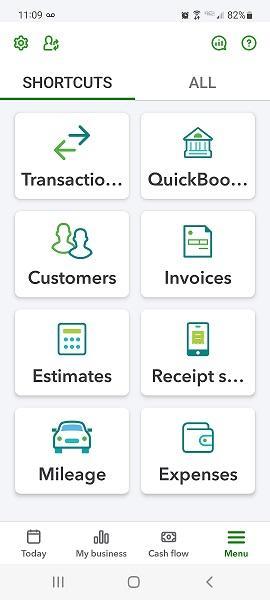
The other three icons at the bottom of the screen serve as navigation tools. The one on the far right labeled Menu opens two screens that can be toggled back and forth. One is Shortcuts, pictured below, a series of links to common actions. The other, All, opens a more traditional, comprehensive menu of links to individual app functions, like a Profit and loss report, Sales receipts, and Products & services.

The QuickBooks Online app’s Shortcuts screen

Besides those functions, there are links to other financial activities on the All screen. The ones you’d be most likely to use remotely are:

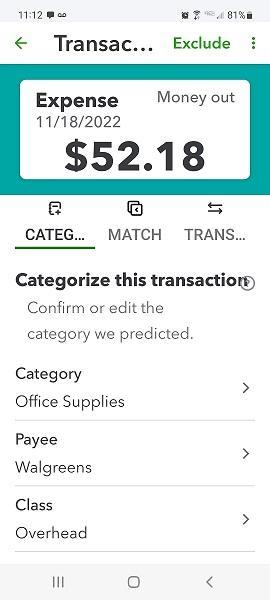
  • Transactions. The ones you’ve imported from your banks are available via this shortcut, as well as any you’ve entered manually on your desktop or phone. You can also get to the list by clicking on an account name on the Today screen.
  • Receipt snap. Using your phone’s camera, you can take a picture of a receipt. The app will pull some of its data and deposit it on an expense form that’s accessible on the app and the desktop version, where you can fill in the blanks and see the picture. 
  • Invoices and Estimates. View, modify, and add them.
  • Customers and Vendors. Abbreviated versions of your records.
  • Expenses and Bill Pay.
  • Mileage. Enter trip data manually or automatically, through your phone’s location services.

Data entry on the mobile apps is as easy as it is on the browser-based version of QuickBooks Online.

About Your Business

Another bottom-of-screen icon takes you to My business, which provides an update (charts and numbers) of your income, expenses, and profitability. And another is Cash flow. Cash flow is actually a pretty complex accounting concept that you can’t fully absorb on a mobile phone screen, but it’s very important that you have a good understanding of how your company is doing. You can ask us about this.

Give It A Try

January is always a good time to develop new habits. We’ll be talking about some of these next month, but in the meantime, you might download and explore QuickBooks Online’s mobile app. You probably won’t need our help learning to use it, but we’re always happy to step in and assist when you’re having trouble with desktop QuickBooks Online.