

The Benefits of Hiring a QuickBooks© ProAdvisor for Your Small Business

Small business owners often have a lot on their plate, from managing employees to overseeing daily operations, and everything in between. With so many responsibilities, it can be difficult to keep track of financial records and ensure that all finances are in order. This is where a QuickBooks ProAdvisor can help.

A QuickBooks ProAdvisor is a certified professional who is trained in using QuickBooks accounting software. Hiring a ProAdvisor can bring numerous benefits to your small business, including:

  1. Expertise and Knowledge: A QuickBooks ProAdvisor is an expert in using QuickBooks software and can offer advice and support on everything from setting up the software to creating reports and managing your finances. They have the knowledge and experience to help you make informed decisions about your business.
  2. Time-Saving: As a small business owner, you likely have a lot of tasks to manage on a daily basis. By hiring a QuickBooks ProAdvisor, you can save time and focus on other areas of your business that require your attention. A ProAdvisor can take care of your bookkeeping, payroll, and tax-related tasks, leaving you with more time to grow your business.
  3. Accurate Financial Reporting: QuickBooks ProAdvisors can help ensure that your financial records are accurate and up-to-date. This can help you make better business decisions based on accurate financial data.
  4. Cost-Effective: Hiring a full-time bookkeeper or accountant can be expensive for a small business. By hiring a QuickBooks ProAdvisor, you can get the expertise you need at a fraction of the cost.
  5. Training and Support: QuickBooks ProAdvisors can provide training and support to you and your employees, ensuring that everyone is familiar with the software and can use it effectively.
  6. Peace of Mind: With a QuickBooks ProAdvisor handling your finances, you can have peace of mind knowing that your financial records are accurate and up-to-date.

In conclusion, hiring a QuickBooks ProAdvisor can be a valuable investment for small business owners. By providing expertise, saving time, ensuring accurate financial reporting, being cost-effective, offering training and support, and providing peace of mind, a ProAdvisor can help you take your business to the next level.

How QuickBooks© Online Tracks Products and Services, Part 1

What products and services does your company sell? Do you have enough to fulfill existing and future orders? QuickBooks Online can tell you.

Most small businesses maintain a changing inventory of multiple products. Even if you sell one-of-a-kind goods, you need to know what you’ve sold and what’s available. And if your company sells services, you also have to keep track of what you’re able to offer customers.

QuickBooks Online can meet these needs. It allows you to create detailed records for both products and services. If you carry inventory, it can make sure that you always know what’s available to sell. When you enter sales and purchase transactions, the site draws on the records you’ve created to help you complete invoices, sales receipts, purchase orders, etc., without having to leave the form you’re working on.

Creating your records initially can take some time. And your products and services require regular monitoring and maintenance. But if you’re conscientious about these tasks, you’re not likely to run short on inventory or have too much money tied up in products that aren’t selling fast enough.

Preparing QuickBooks Online

Before you begin creating records and tracking inventory, you need to make sure that QuickBooks Online is set up correctly. Click the gear icon in the upper right. Under Your Company, click Account and settings. Click the Sales tab in the toolbar. You’ll see the Products and services section near the middle of the screen.

Graphical user interface, text, application, chat or text message

Description automatically generated

Make sure you’ve turned on the Products and services features you’re going to need.

Toggle the slider buttons on and off by clicking on them, and be sure to save your changes when you’re done. One option allows you to turn on price rules. This is still classified as a beta feature, but it’s live on the site. It’s also quite complicated to set up and can create confusion for your customers and revenue loss for you if it’s not done correctly. Let us help if you want to use this tool.

Creating Your Product and Service Records

Your first task, of course, is to build your product and service records. Hover your mouse over Sales in the left vertical toolbar on the home page and select Products and Services. The screen that opens is your home base for dealing with inventory and services. Eventually, it will contain a detailed table containing information about both. Two large buttons at the top of the page warn you when you have Low Stock or you’re Out of Stock.

Click New in the upper right corner. A vertical panel slides out from the right displaying your four options for Product/Service information. They are:

  • Inventory. If you buy and/or sell products whose quantities you must track, these items are considered inventory.
  • Non-inventory. You may have products that you buy and/or sell, but you don’t need to track the amount you have in stock. These are considered non-inventory.
  • Service. These are, well, services that you provide to customers, like landscaping or web design. You might sell these by the hour or project, for example.
  • Bundle. You might call these assemblies. Bundles are multiple products and/or services that you sell as a package for one price.

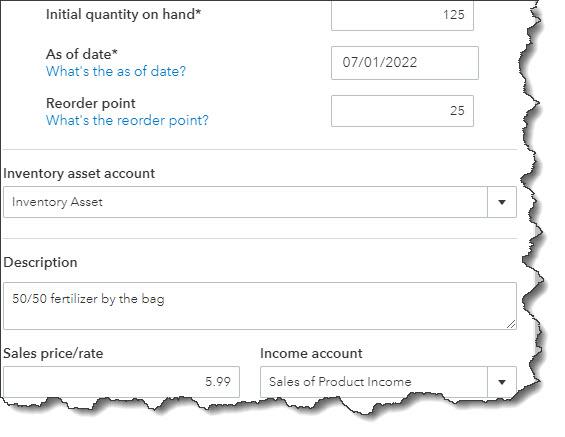
Click on Inventory for this example. Here is a partial view of the pane you’ll see:

Graphical user interface, text, application, email

Description automatically generated

You can track your inventory levels and reorder points when you create inventory product records in QuickBooks Online.

To create a product or service record, just fill in the blanks on the form and save it. Some fields are optional. In fact, only three are required: Name, Initial quantity on hand, and As of date. Of course, your inventory tracking and the use of product and service records in transactions and reports will be much more effective if you complete as many of the fields as possible. We recommend that you at least provide answers in some additional fields (some of which aren’t shown here), including:

  • Category (will be useful in reports, for example)
  • Reorder point (will keep you from running out of items)
  • Inventory asset account (you can leave the default, Inventory Asset)
  • Description (for sales forms)
  • Sales price/rate (what the customer will be charged)
  • Description (for purchase forms)
  • Cost (what you pay to buy it)
  • Expense account (often Cost of Good Sold, but you can ask us to be sure)

Next month, we’ll discuss how QuickBooks Online makes these records available as you complete other tasks, like transactions. In the meantime, please let us know if you have other questions we can answer that would help you use QuickBooks more effectively. We hope you’re enjoying your summer!

How to Create and Use Vendor Records in QuickBooks® Online

Keeping your supplies coming in may be difficult right now. Be sure you know your vendors and track their records carefully.

Your company counts on its supply chains to keep operations running smoothly. When it falters, you can have trouble creating and shipping products. Problems may even crop up that have a negative effect on your internal business needs.

We don’t have to tell you that COVID-19 has interrupted supply chains. The pandemic has been catastrophic for many small businesses because of this, and because income has been suddenly and sharply reduced. Some financial help is available, and we hope you’re able to take advantage of it during these extraordinarily difficult times.

It’s perhaps more important than ever to carefully track your income and expenses, and we hope you’re using QuickBooks to do so. Among the software’s financial management tools is the ability to maintain thorough records of those vendors that make up your supply chain. Let’s take a look at how this works.

Creating Vendor Records

We’ll go through the steps for creating vendor records, though you may have at least started on these already. Hover your mouse over Expenses in the toolbar and select Vendors. If you’ve already added some, you’ll see them in a list. To create a new one, click New Vendor in the upper right. Most of the form is easy to complete; it’s primarily contact information.

There are a few fields, though, that need special attention. These are:

  • Cost rate/hr and Billing rate/hr. These help you track time costs for your projects. Don’t enter anything here if you pay vendors via bills or expenses.
  • Terms. Due on receipt? 15 days? 30 days? 
  • Account no. and Business ID No. You should have these on file.
  • Track payments for 1099. Put a check in this box for any 1099 contractors.

When you’re done, click Save. This vendor will now appear in your list.

Taking Action

A screenshot of a cell phone

Description automatically generated

You can take a number of actions from QuickBooks’ Vendors screen.

You can do a lot of your work directly from QuickBooks’ Vendors page. This screen displays a list of all of your vendors, along with columns for their Phone, Email, and Open Balance. At the end of each row is an Action column. The link there reads either Create bill or Make payment, depending on whether there is an outstanding balance. 

Click on the down arrow in that column to open a list of additional options. If there is a zero balance, you can Create expense, Write check, Create purchase order, or Make inactive. If money is due, your options are to Create bill or Create expense. Icons in the upper right allow you to print the list, export it to Excel, or change the column settings.

Collecting Your Billables

Before we look at vendor records in QuickBooks, we’d like you to check a couple of settings to make sure you’re billing your customers for every expense they incur with you. Click the gear icon in the upper right corner and select Your Company | Account and Settings, then click on Expense. Among others, you’ll see these options:

A close up of a map

Description automatically generated

If you incur expenses on behalf of customers, be sure you will be reimbursed for them by adding a Billable column on expense and purchase forms.

To add a Customer column to expense and purchase forms, click in the first box pictured in the image above. To Make expenses and items billable, click in the second box and add a default markup rate if you want. Do you want to Track billable expenses and items as income? If you’re not sure, ask us. And if you’ve set up sales tax in QuickBooks and want to add that to billable items, check that box, too. When you’ve finished with these and the other questions under Bills and expenses, click Save.

Now is the time to focus on the importance of cash flow and vendor relationships by maintaining good vendor payable records. You want to keep your relationships with your suppliers in good status. If you’re having trouble tracking cash flow or dealing with any other element of your accounting (or QuickBooks itself), please do contact us. We want to support you through this difficult period as much as we can.